![Nimbello_Logo_CMYK_Horzontal_Color_TM.png]](https://www.nimbello.com/hs-fs/hubfs/Nimbello_Logo_CMYK_Horzontal_Color_TM.png?height=40&name=Nimbello_Logo_CMYK_Horzontal_Color_TM.png)
Set-Up:
Navigate to the Vendor Division Approval page (Setup > Client Info > Vendor Division Approval). In this page, select a Vendor. Then select the Division and Approval Group you would always want to be assigned to the vendor. Then select the Allocation Group you would want to apply to invoices for this vendor (see this article to learn how to set up Allocation Codes):

You can then set a Min Amt and Max Amt. These are the minimum and maximum invoice amounts that can be auto-approved. In the below example, any invoice under $100.00 for this vendor will not be auto-coded and auto-approved, and any invoice over $600.00 for this vendor will not be auto-coded and auto-approved:

However, if you click the “Override Amount” checkbox in the above screenshot, the Min Amt and Max Amt values will be ignored, and invoices below the Min Amt and above the Max Amt will be Auto GL Coded and Auto Approved. Do not click the “Override Amount” button if you are concerned about the possibility of auto-approving invoices outside of an amount range.
Auto-Coding Example:
With the “Vendor Division Auto Approval” item I set up in the previous step, an invoice for vendor # 123456, with an amount of $300.00, will auto-code to the following:
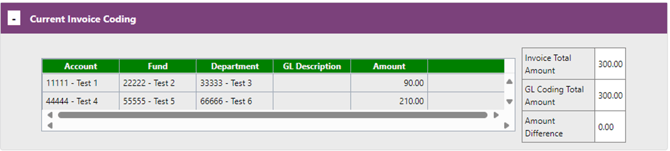
The Approval Group will automatically be selected as “TEST”:

And the Division will automatically assign to “Test Division”:
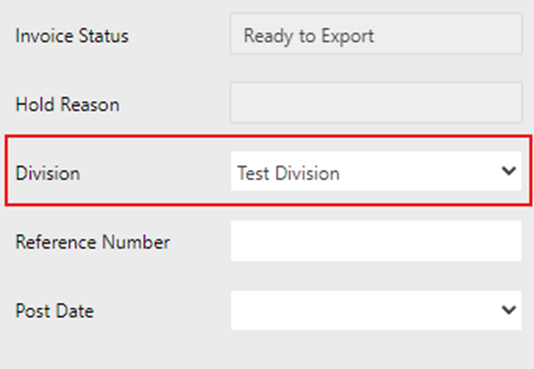
The invoice will also auto-approve and move to Ready to Export:
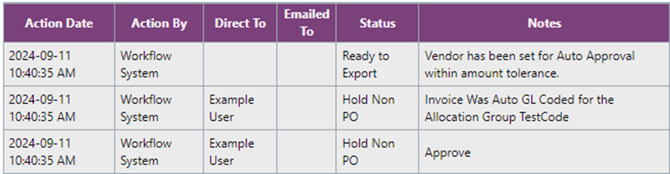
Note: If an invoice encounters a hold due to other pre-processing rules, it may not be auto-coded and auto-approved. For example, another pre-processing rule is the “Invoice Number Pattern Check For Digits” rule, which holds invoices in an EA Verification status for a Nimbello Administrator to review the invoice # for accuracy; if an invoice gets held in EA Verification for this reason, it may not be auto-coded and auto-approved.