![Nimbello_Logo_CMYK_Horzontal_Color_TM.png]](https://www.nimbello.com/hs-fs/hubfs/Nimbello_Logo_CMYK_Horzontal_Color_TM.png?height=40&name=Nimbello_Logo_CMYK_Horzontal_Color_TM.png)
For "EA Internal" codes, each GL Code within an Allocation code will be set to allocate a certain percentage of the invoice’s total to that GL Code within the Workflow.
For "ERP" codes, allocation is not handled within the Workflow; instead, it is used to link an identification code to the invoice of a preset allocation from the ERP. In the case of ERP allocations, the GL String is not sent back to the ERP, but just the identification code in which the ERP will then do the distribution (before using this option, ensure that integration has been completed with the ERP).
To create an Allocation Code, navigate to the ERP Allocation Codes page (Set Up > Non PO Approval Setup > ERP Allocation Codes).
"EA Internal" Codes
For "EA Internal" codes, select “EA Internal” as the Allocation Type; then enter a name for the Allocation Code in the ERP Allocation Code field, and a description of the Allocation Code in the ERP Description field:

After adding that information, click “Save.” It should create a line like the below line. On the below line, click “Edit”:

Near the bottom of the page, enter a GL code you would want to be part of the Allocation code. Then click “Save/Add Line”:

If you want more than one GL Code to be part of this Allocation Code, you can add more than one code:

After you add the codes, they should appear in a box like this:
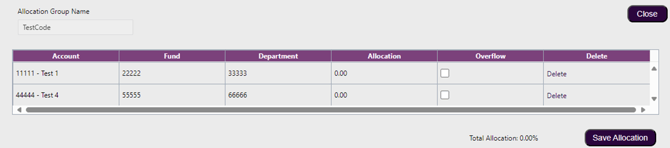
You need to determine what percentage of the invoice’s total amount should be allocated to each code. To do this, you need to click the cells in the “Allocation” column. Then enter the percentage of the invoice total you want to be assigned to each code. 100 % of the invoice’s amount should allocated between each code (in the below example, 30% is allocated to the first code, and the remaining 70 % is allocated to the second code):
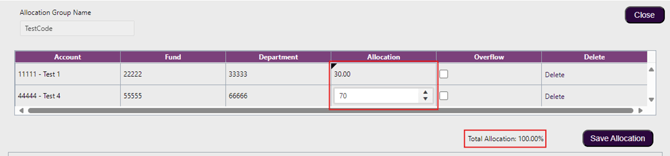
One GL Code will need to have the cell in the “Overflow” column checked. Sometimes an invoice’s total amount cannot perfectly be split between two codes due to rounding issues. The code you check as the “Overflow” cell will be the line that will go slightly over the allocation percentage if necessary.
For example, if the invoice’s total amount is 1000.05, the allocation amount for a 30 % allocation will be 300.015 before rounding, and the allocation amount for a 70 % allocation will be 700.035 before rounding. If you check the 70% allocation line as the “Overflow” line, the invoice will be coded with a 300.01 line, and a 700.04 line. If you check the 30 % allocation line as the “Overflow” line, the invoice will be coded with a 300.02 line, and a 700.03 line.
After selecting the Overflow code, click “Save Allocation”:
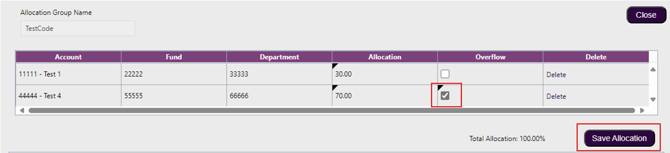
After saving the Allocation, it should appear like this:

"ERP" Codes:
For "ERP" codes, select “ERP” as the Allocation Type; then enter an identification code in the ERP Allocation Code field, and a description of the Allocation Code in the ERP Description field:
ERP codes can only be used after integration work is completed to ensure it is compatible with your ERP.
How to Use:
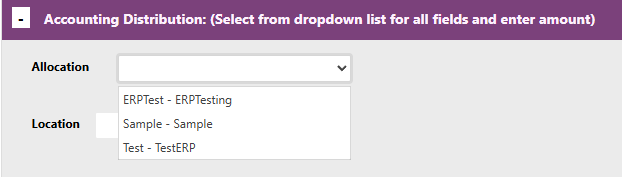
Once added, an Allocation Code can be applied to an invoice by selecting it from the "Allocation" Drop-Down in the Accounting Distribution field: