![Nimbello_Logo_CMYK_Horzontal_Color_TM.png]](https://www.nimbello.com/hs-fs/hubfs/Nimbello_Logo_CMYK_Horzontal_Color_TM.png?height=40&name=Nimbello_Logo_CMYK_Horzontal_Color_TM.png)
Skip Data Verify (SDV) is a feature that allows the OCR system to automatically process invoices that meet a high confidence threshold, bypassing the manual Data Verify step entirely.
When the system is confident enough in the data it has captured (vendor, invoice number, date, amounts, and PO number), the invoice moves straight through without requiring a reviewer to check it. Invoices that do not meet the threshold are routed for manual review as normal.
How Does It Decide to Skip?The OCR engine scores every field it captures on each invoice. If all key fields meet the required confidence level and pass validation checks, the document is automatically submitted. If any field falls short, the invoice is separated into a review queue for a user to handle.
What Gets CheckedFor an invoice to be automatically processed, each of the following fields must meet a confidence threshold. By default we set this threshold to 97 out of a possible 100, meaning the system must be highly confident in the captured values before it will allow the invoice to skip manual review:
- Vendor
- Invoice Number
- Invoice Date
- PO Number
- Net Amount
- Freight
- Tax
- Total Amount
- Quantity Shipped
- Unit Price
- Extended Amount
What Does This Look Like in Practice?
Before SDV is enabled, every invoice lands in Data Verify for a processor to review. You may have noticed that many of those invoices arrive with all fields already populated and validated — all a processor needs to do is click Submit. This is the system telling you it is confident in what it captured.
Those are exactly the invoices SDV is designed to handle automatically. Once enabled, invoices like these move straight through to your system without anyone needing to touch them. Your team's time is preserved for the invoices that genuinely need attention.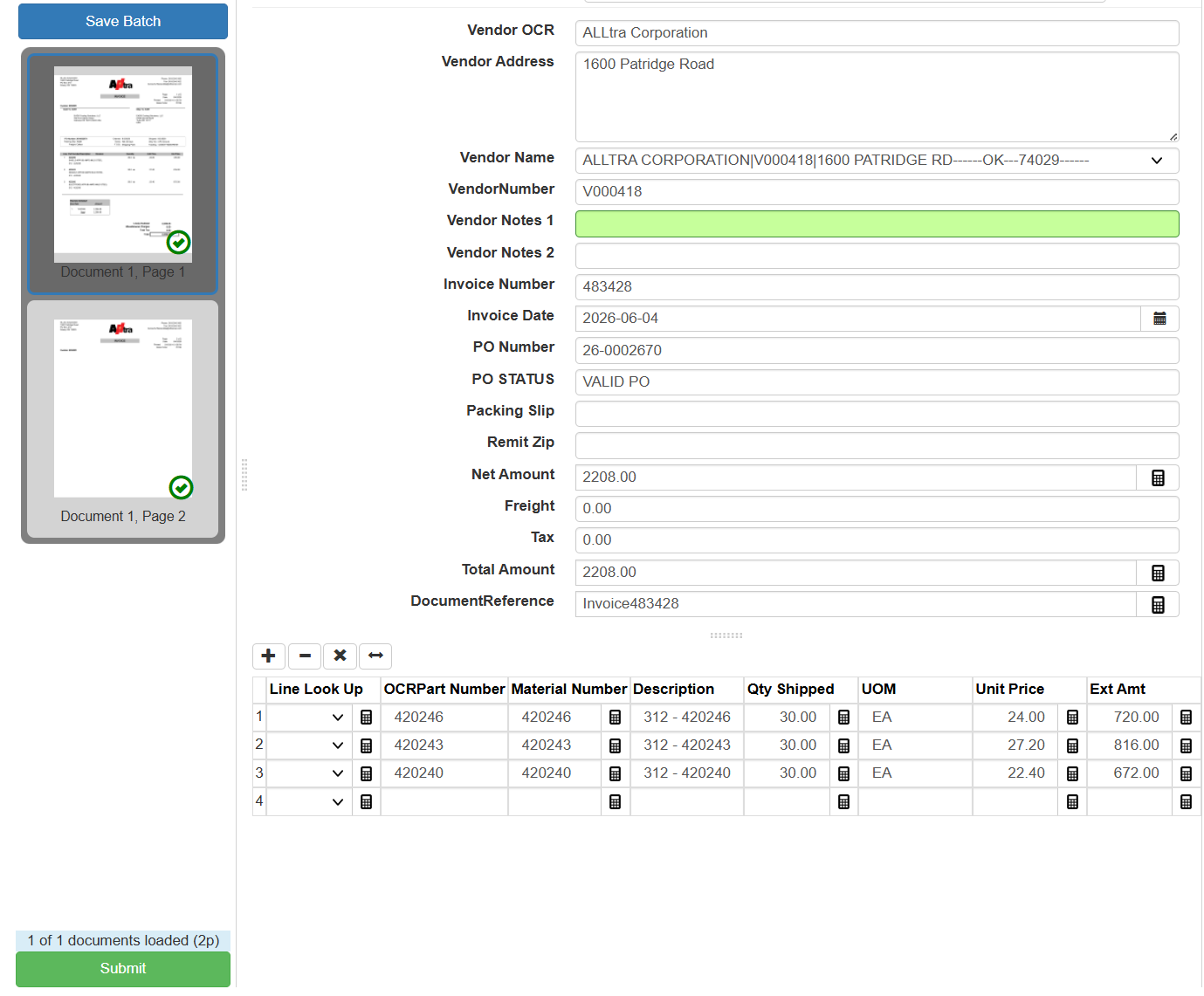
SDV includes a number of safeguards to ensure only appropriate invoices are auto-processed. The following are configured by default:
- Unknown vendors are excluded. If an invoice arrives and is automatically assigned vendor number 999999 it is then flagged with a soft validation. This prevents it from being processed by SDV and routes it to your team for review.
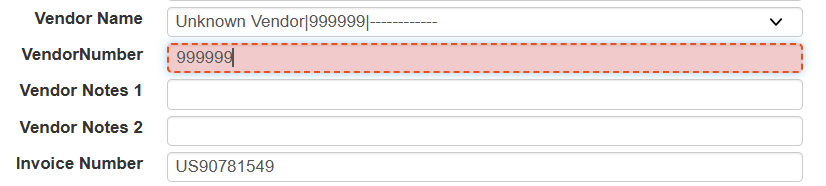
- Stop for Review. If you need to hold a specific vendor's invoices from being auto-processed, you can enter
stop for reviewin the Vendor Notes 2 field on the vendor record in the Workflow portal. This triggers a soft validation in OCR that prevents any invoice from that vendor from skipping Data Verify, regardless of its confidence score.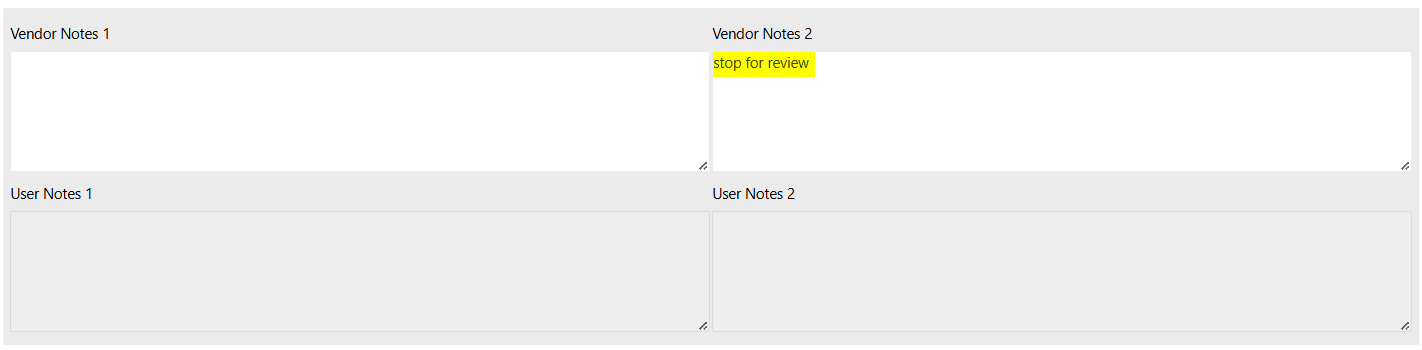

- Manual override. For any invoice held by a soft validation, a processor can bypass the hold using CTRL + Q if they have reviewed it and are comfortable submitting.

The following safeguard is optional and can be enabled on request:
- Credit and zero amount invoices (optional). If you would like credit invoices (negative amounts) or zero amount invoices to be held for manual review rather than auto-processed, we can configure an additional field that works similarly to the unknown vendor and Stop for Review checks. When triggered, it applies a soft validation that prevents those invoices from being skipped by SDV. Let us know if this is something you would like enabled.


Any invoice that does not meet the SDV criteria is automatically separated into an exceptions batch and routed to your team for review. No invoices are dropped or lost; they are simply queued for a user to handle.
After ActivationAfter enabling SDV, we will review the Data Changes log within the system to confirm the feature is not producing a notable number of errors, and make any necessary adjustments.
If you have any questions or would like to discuss this further, please don't hesitate to reach out.