![Nimbello_Logo_CMYK_Horzontal_Color_TM.png]](https://www.nimbello.com/hs-fs/hubfs/Nimbello_Logo_CMYK_Horzontal_Color_TM.png?height=40&name=Nimbello_Logo_CMYK_Horzontal_Color_TM.png)
After the OCR process is complete and an invoice imports into the Workflow Module, one of the first steps for every Non-PO invoice is assigning an Approval Group. This ensures the invoice is routed to the correct users for GL coding, review, and approval.
In many cases, Nimbello can automatically assign the appropriate Approval Group. However, when an Approval Group is not assigned automatically, it is typically the responsibility of an AP Admin to select the correct group manually.
Choosing the correct Approval Group is important because it determines which users will review, GL code, and approve the invoice before it can be exported to your ERP to be paid.
Selecting an Approval Group
To assign an Approval Group, open the invoice and navigate to the Communication Area, as shown below.
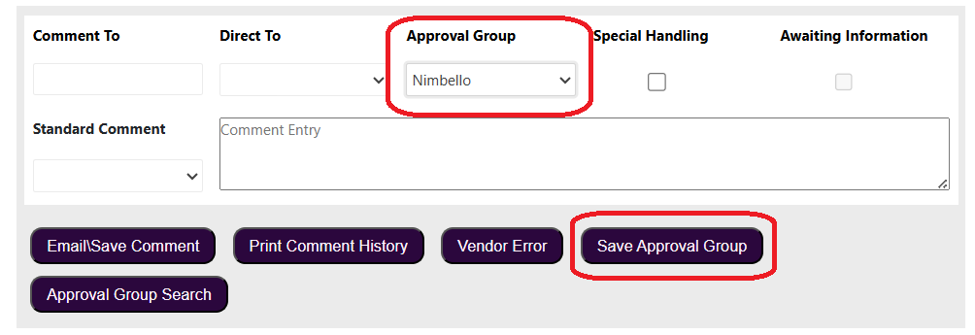
Next, select the appropriate Approval Group from the dropdown menu and click Save Approval Group.
Once the Approval Group has been applied, Nimbello will automatically route the invoice to the first user in listed in that approval the approval group. That use is responsible for applying GL coding and clicking Approve.
The invoice will then continue through the approval workflow, moving from one user to the next until all required approvals have been completed. When the invoice reaches the final approver, the Approve button will change to Final Approval. A Non-PO invoice cannot be exported until Final Approval has been completed.
Note: Once an invoice reaches Ready To Export status, no further action is required. Nimbello will automatically export the invoice during the next scheduled export cycle, where it can then be processed for payment in your ERP system.
Related article: Export Statuses