![Nimbello_Logo_CMYK_Horzontal_Color_TM.png]](https://www.nimbello.com/hs-fs/hubfs/Nimbello_Logo_CMYK_Horzontal_Color_TM.png?height=40&name=Nimbello_Logo_CMYK_Horzontal_Color_TM.png)
Overview
The PO Additional Charge GL Code Setup page controls which GL accounts users can pick when they code an additional charge on a PO invoice. There are three additional charge types: Freight, Miscellaneous, and Tax. Each type is set up separately.
You can set up a charge type in one of two ways:
- Assign All. Every GL account in the system is available for that charge type.
- Specific GLs. Only the accounts you choose are available for that charge type.
Before you begin: Open the Additional Charge GL Code Setup page from the application menu (Setup > PO Additional Charge GL Code Setup).
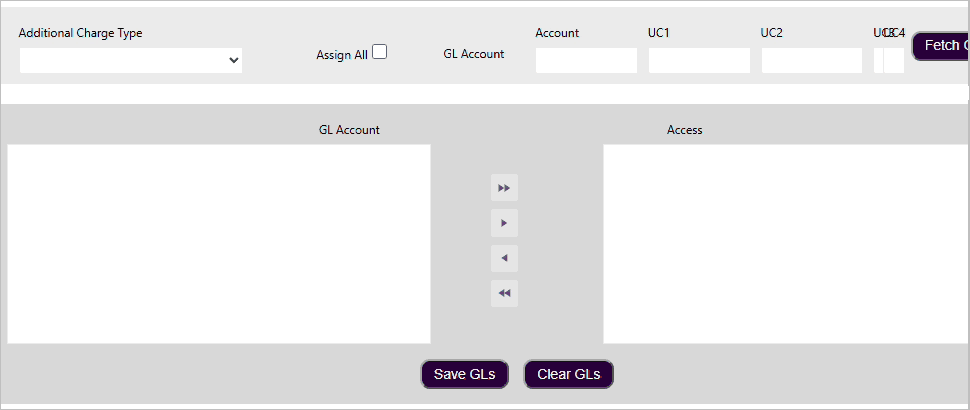
Select the charge type and use Assign All
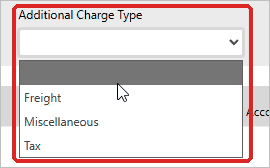
- Open the Additional Charge Type drop-down and choose Freight, Miscellaneous, or Tax.
- Look at the Assign All checkbox to see how that charge type is currently set up. If it is checked, all GL accounts are already available for that charge type. If you would like for all GL accounts to appear in the drop-down for that type of charge, check Assign All and click Save GLs.

Make only specific GL accounts available
This is another option to limit a charge type to a set list of GL accounts.
- Select the charge type and make sure Assign All is unchecked.
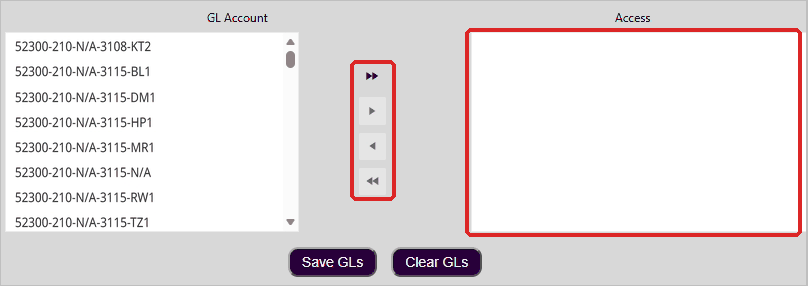
- In one of the boxes under GL Account, type a section of the account number, then click Fetch GLs. Matching accounts appear in the GL Account box on the left.

- Select the account you want to make available and click › to move it to the Access box, or click » to move every account in the list. When the Access box contains the accounts you want, click Save GLs.