![Nimbello_Logo_CMYK_Horzontal_Color_TM.png]](https://www.nimbello.com/hs-fs/hubfs/Nimbello_Logo_CMYK_Horzontal_Color_TM.png?height=40&name=Nimbello_Logo_CMYK_Horzontal_Color_TM.png)
Accessing Vendor Division Tolerance
- Navigate to the Client Info page.
- Select the Vendor Division Tolerance tab.
Step-by-Step Configuration
1. Select Vendor and Division
- Use the search function to locate and select a Vendor.
- If applicable, choose a Division associated with the vendor.
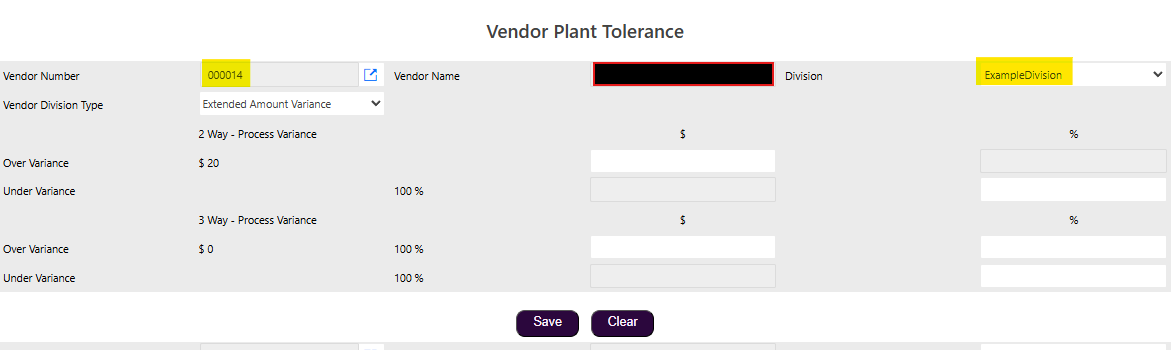
2. Choose Vendor Division Type
- Select the Vendor Division Type, which determines the type of variance rule to apply:
- Price Variance
- Extended Amount Variance
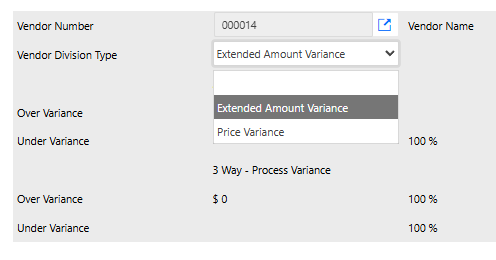
3. Review Base Configuration
- Once a Vendor Division Type is selected, the system will display the base configuration directly below.
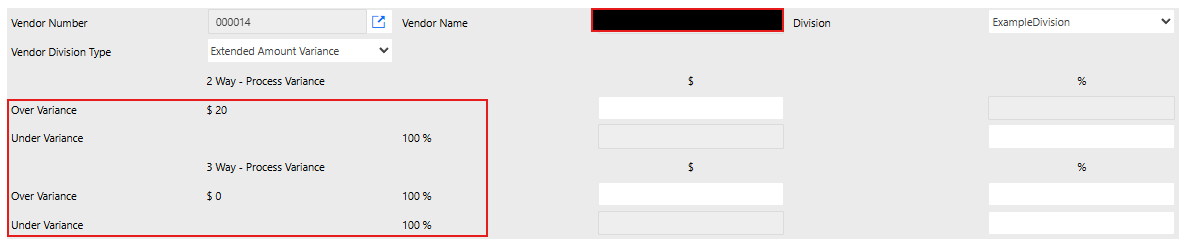
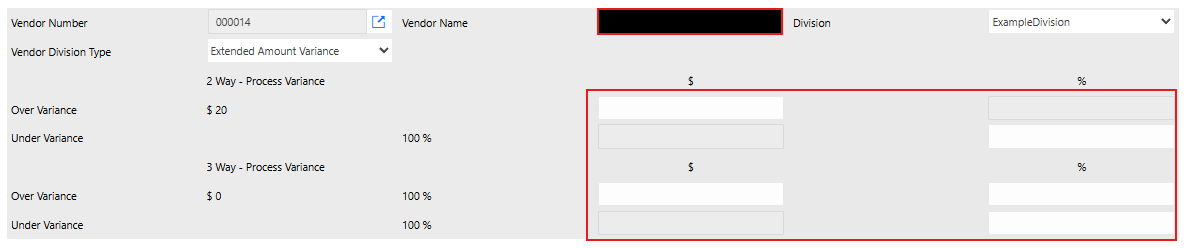
4. Add a Custom Tolerance
- You can add a special tolerance for the selected vendor/division combination.
- The tolerance must match the value type used in the base rule:
- For example, if the base rule uses a percentage (%), the custom tolerance must also be entered as a percentage.
5. Save the Configuration
- After entering the desired tolerance values, click Save.
- The new rule will be stored and displayed as an entry in the Vendor Division Tolerance list.
