![Nimbello_Logo_CMYK_Horzontal_Color_TM.png]](https://www.nimbello.com/hs-fs/hubfs/Nimbello_Logo_CMYK_Horzontal_Color_TM.png?height=40&name=Nimbello_Logo_CMYK_Horzontal_Color_TM.png)
When an invoice has an issue that doesn’t allow it to be processed or submitted, your best course of action is to remove it from the batch by Setting it as an Exception.
Some reasons an invoice may not be able to be processed or submitted:
• Illegible
• Poor Quality
• Hard Validation not fixable in the PROD queue
• Incorrect Information on Invoice
• Math Error
|
Note : Before setting an invoice to Exceptions in PROD, be sure to complete as much of the invoice as possible. Once all available fields have been entered, SAVE the batch prior to setting the invoice to Exceptions. This step ensures that all completed work is retained as the invoice moves into the Exceptions queue. |
To Set an Invoice as an Exception:
1. Move your curser over the thumbnail that represents that image. Right click to bring up the Right Click Menu.
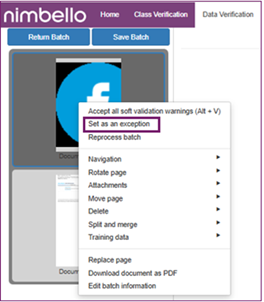
2. Select “Set as an Exception” from the menu
3. A box will appear requesting that you select reason for the exception from the drop-down menu. A brief description of the reason for the exception is required to set the exception. BEST PRACTICE: tag your initials to the note in case someone working on the invoice in the Exceptions tab has questions.
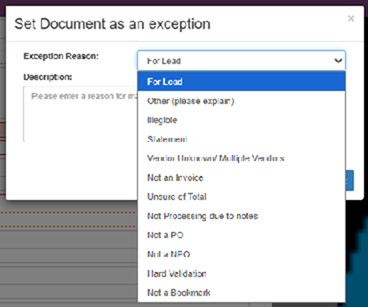
4. Once the reason and description fields are complete, click the “Set” button to complete the move to Exceptions.
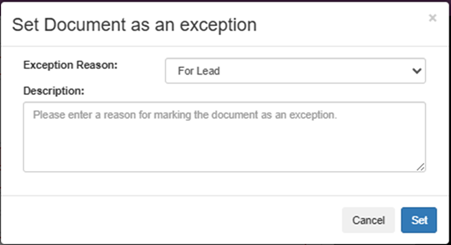
This practice ensures that the rest of the invoices in the batch will be able to be submitted, and the issue invoice is removed to the Exceptions tab for resolution.