![Nimbello_Logo_CMYK_Horzontal_Color_TM.png]](https://www.nimbello.com/hs-fs/hubfs/Nimbello_Logo_CMYK_Horzontal_Color_TM.png?height=40&name=Nimbello_Logo_CMYK_Horzontal_Color_TM.png)
When Should I Use Special Handling?
The Special Handling feature is designed for situations where an invoice requires additional attention outside of the normal approval workflow.
For example, you might use Special Handling when:
- A purchasing team member needs to create a PO before the invoice can be processed.
- Someone needs to contact the vendor for clarification or additional documentation.
- An invoice requires review by another department.
- Additional research or follow-up is needed before processing can continue.
By marking an invoice as Special Handling, you can assign a task to another user and ensure the invoice remains visible until the requested action has been completed.
Marking an Invoice as Special Handling
To mark an invoice as Special Handling:
- Open the invoice and navigate to the Communications section near the bottom of the Invoice Details page.
- Check the Special Handling box.
- Select a user from the Comment To dropdown.
- Enter your message or instructions.
- Click Email/Save Comment.
note:
Nimbello can be configured to have this box checked by default whenever the Invoice Details page is opened. However, the state of this checkbox does not indicate whether the invoice is currently in the Special Handling queue. The checkbox simply controls whether a new comment will be marked as Special Handling when it is saved.
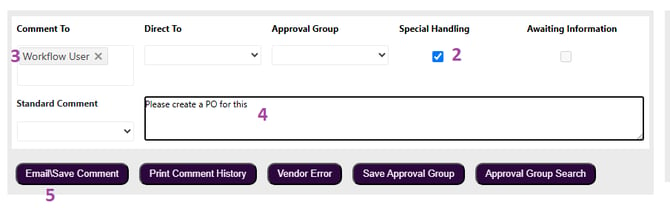
When you save the comment:
- A record is added to the Notes and Actions Log.
- The invoice is added to the Special Handling queue.
- The selected user receives the Special Handling task.
Viewing Special Handling Queues
Special Handling queues are available from the Home page and are divided into two sections:
My Special Handling Tasks
This section displays Special Handling invoices that have been assigned directly to you.
Special Handling Tasks - ALL
This section displays all invoices currently marked as Special Handling, regardless of who they were assigned to.
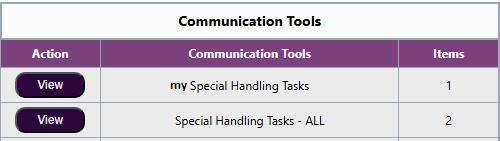
Managing Special Handling Tasks
Click View from either Special Handling queue to open the task list.

From this screen, you can:
- Review all invoices currently marked as Special Handling.
- Export the list to Excel using the Excel Export button.
- Remove completed items from the queue by checking the box in the Complete column and clicking Special Handling Clearing.
Once cleared, the invoice will no longer appear in the Special Handling queue.
Summary
Special Handling provides a simple way to assign follow-up actions, request assistance, and track invoices that require additional attention before processing can continue. By directing tasks to specific users and maintaining visibility through dedicated queues, teams can collaborate more effectively and prevent invoices from being overlooked.