![Nimbello_Logo_CMYK_Horzontal_Color_TM.png]](https://www.nimbello.com/hs-fs/hubfs/Nimbello_Logo_CMYK_Horzontal_Color_TM.png?height=40&name=Nimbello_Logo_CMYK_Horzontal_Color_TM.png)
User creation is quick and straightforward.
Navigate to User Setup
-
Log in to the site.
-
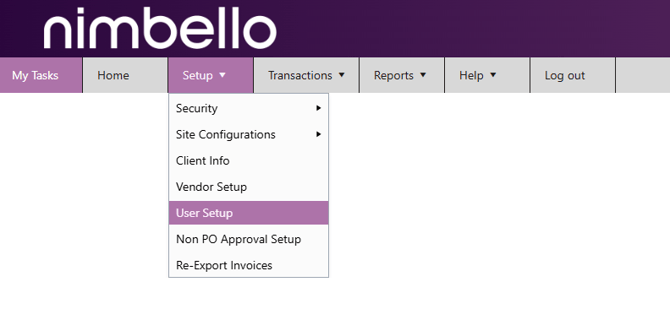
Go to the Setup tab.
-
Hover over it and select User Setup.
Note: Only users with the appropriate security profile can create new users.
Click Create New User.
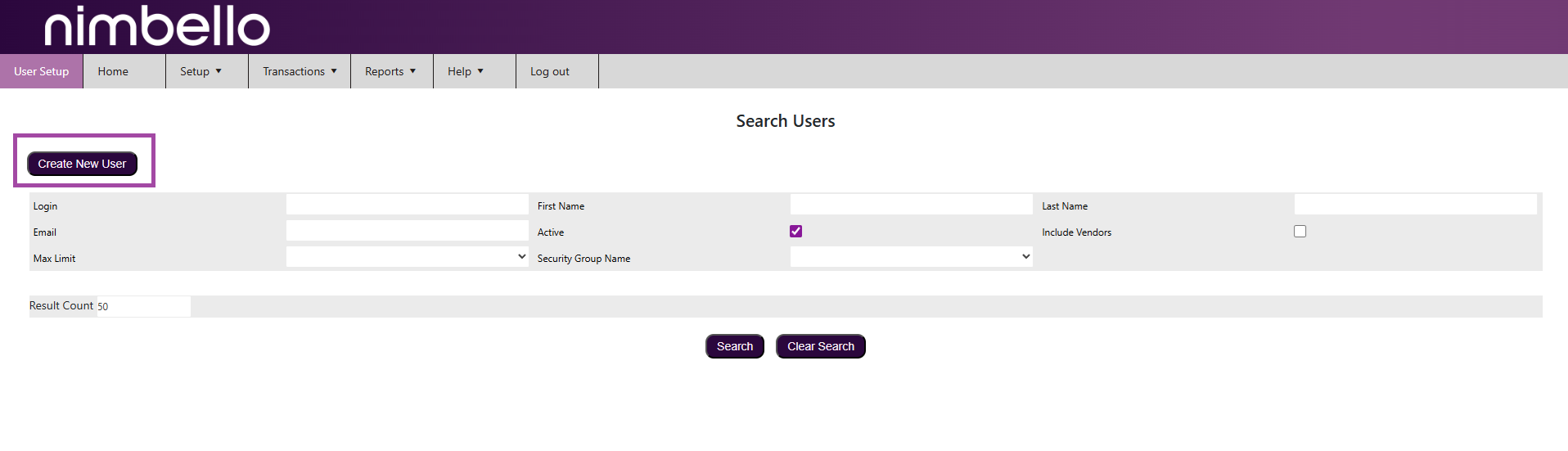
You’ll be taken to a slightly different screen where you’ll enter the new user information.
Enter Basic User Information
[Click image to open in a new tab]
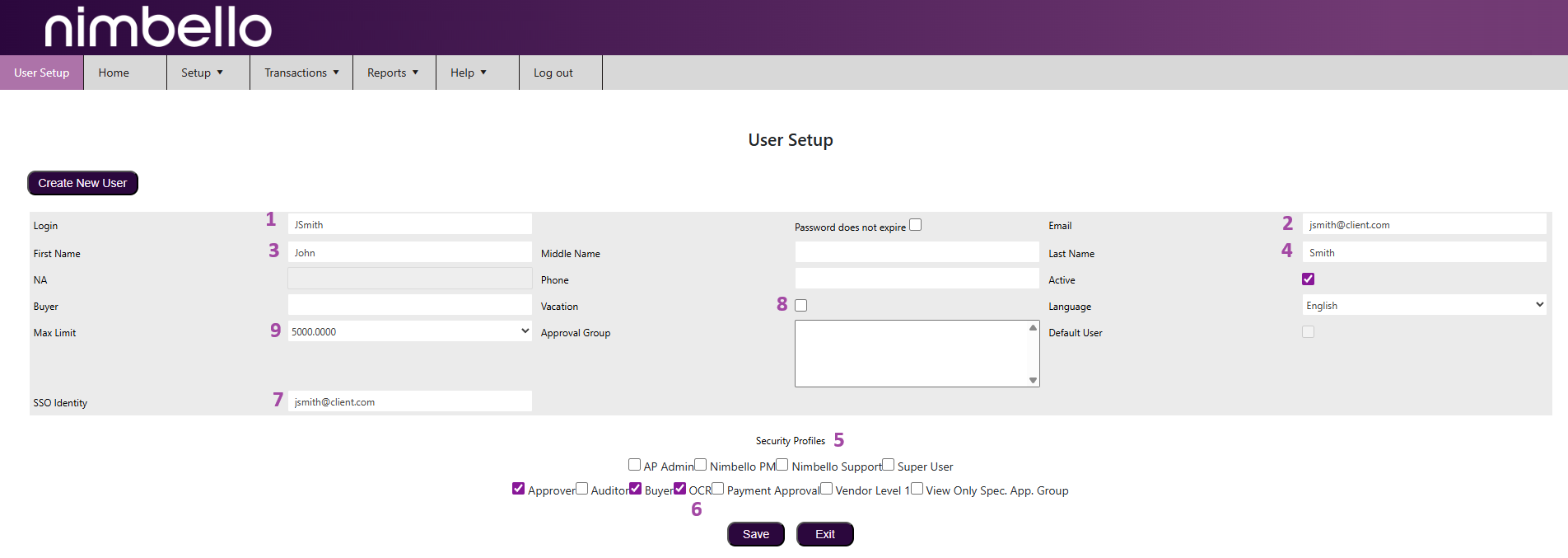
Fill out the following fields:
-
Login
Typically this is the user’s email prefix (everything before the @).
Example:jsmith@client.com→ JSmith -
Email Address
Example:jsmith@client.com -
First Name
Example: John -
Last Name
Example: Smith -
Security Profile(s)
Assign the appropriate security profile(s).
⚠️ At least one security profile must be selected.Note: The above 5 items are required for all Nimbello users, below we'll go over some optional fields. - OCR Access
If the user needs access to the OCR module:
-
Assign the OCR security profile.
-
Email support@nimbello.com so the backend OCR connection can be completed.
-
- SSO Identity (If Applicable)
If your company uses Single Sign-On (SSO), you must enter the correct value in the SSO Identity field. This value varies by organization depending on your SSO setup, but often is entered as the user's email address. - Vacation Setting
The Vacation checkbox marks a user as temporarily unavailable.
➡️They will be skipped in approval routing.➡️If they are the final approver, the invoice will route to an AP Admin for review.
- Approval Group Limits
If the user will be in a Limited Approval Group, you must set a Max Limit.-
This is the highest dollar amount the user can approve across all of their approval groups.
-
Set the Max Limit to match the largest group limit they belong to.
Example:
John is in three groups:-
$10
-
$100
-
$5,000
John’s Max Limit should be set to $5,000.
-
Final Step
Click Save to create the user.
You can update security profiles and user details later if changes are needed.