![Nimbello_Logo_CMYK_Horzontal_Color_TM.png]](https://www.nimbello.com/hs-fs/hubfs/Nimbello_Logo_CMYK_Horzontal_Color_TM.png?height=40&name=Nimbello_Logo_CMYK_Horzontal_Color_TM.png)
Overview
The Date Setting tab on the Client Info page controls how invoices export based on date. You can use it to:
- Stop exports by date. Stop all exports on a set date, or stop any invoice dated after a set date.
- Update the posting date. Change the AP effective date that is sent in the export.
- Hold certain invoices in AP Review. Invoices with an Invoice Date between the first of the month and the Review Date can be held if they fit certain qualifications.
The Stop Exports checkbox on this tab is not currently in use.
Before you begin: Open the Client Info page from the application menu (Setup > Client Info) and click the Date Setting tab.
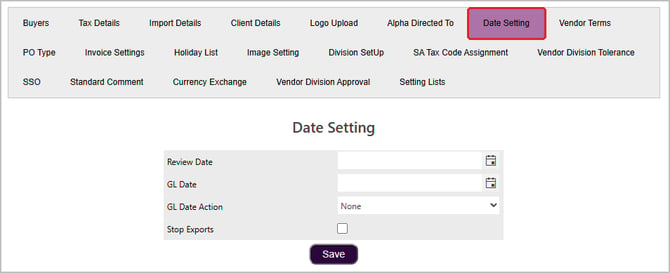
Stop exports by date
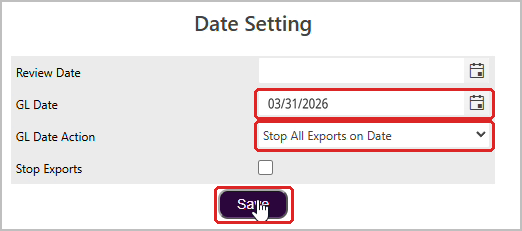
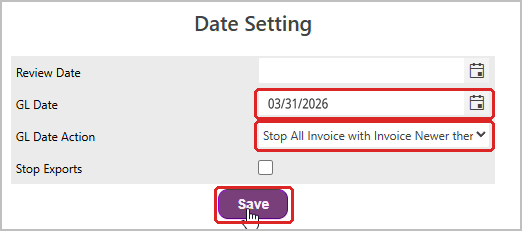
- Open the GL Date Action drop-down and choose the action you need:
- Stop All Exports on Date stops all exports on the GL Date.
- Stop All Invoice with Invoice Newer then Date stops any invoice with an invoice date after the GL Date. For example, with a GL Date of 03/31/2026, an invoice dated 04/01/2026 will not export, while an invoice dated 03/30/2026 will.
- Enter the date in GL Date and click Save.
Update the posting date in the export
NOTE: This option requires an override from Nimbello and your ERP Integrator and may not be applicable to every ERP. Check with Nimbello support before using it to confirm it will work for you.
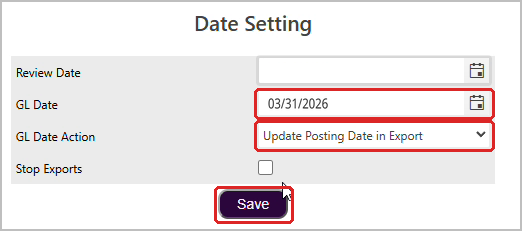
- Open the GL Date Action drop-down and choose Update Posting Date in Export.
- Enter the date you want to have as your Posting Date in the ERP as the GL Date. All invoices exporting to the ERP will have that date as the Posting Date.
Hold certain invoices in AP Review
If you set a Review Date, certain conditions on an invoice can cause it to be held in AP Review for “Review Posting Date” if that AP Review rule is active.
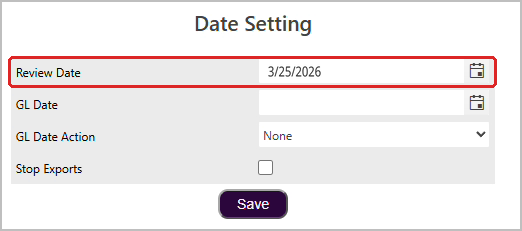
-
The conditions to hold an invoice in AP Review are as follows:
-
The invoice’s Invoice Date is between the first of that Review Date’s month, and the Review Date itself.
-
The Post Date is anything other than blank or The Current Month (usually, only The Previous Month qualifies), the invoice meets the date conditions. If the invoice date is outside the range, or the Post Date is blank or The Current Month, the AP Review rule does not hold it.
-
The invoice’s total amount is above $500.00
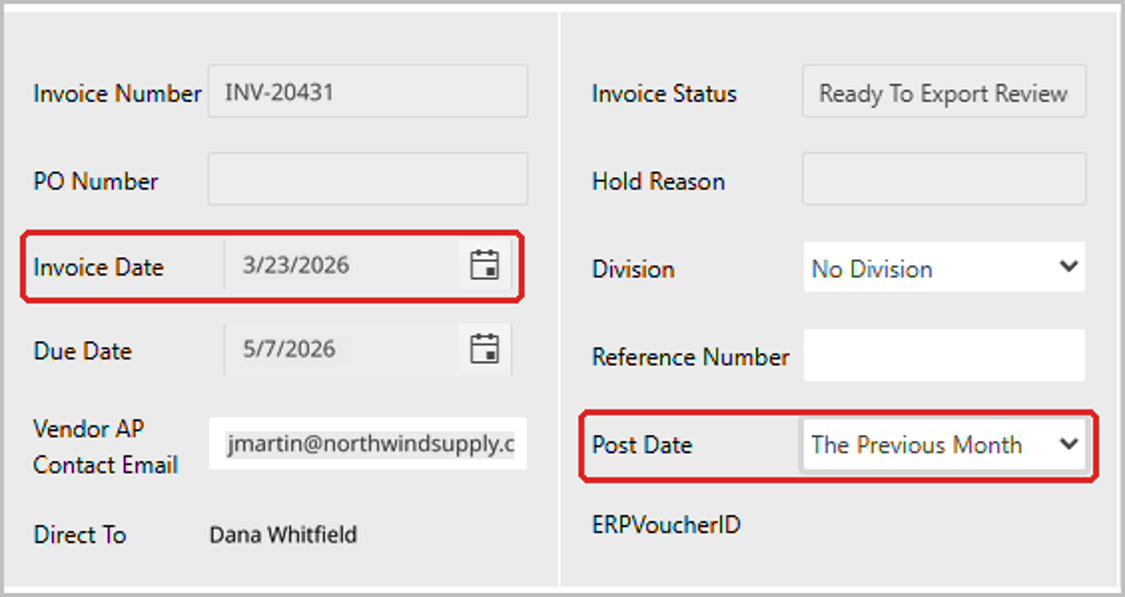
-
- If all qualifications are met, it will be held in AP Review for Review Posting Date
