![Nimbello_Logo_CMYK_Horzontal_Color_TM.png]](https://www.nimbello.com/hs-fs/hubfs/Nimbello_Logo_CMYK_Horzontal_Color_TM.png?height=40&name=Nimbello_Logo_CMYK_Horzontal_Color_TM.png)
PO invoices can flow through Nimbello without manual review, but this only works when the invoice data matches the Purchase Order (PO). Accurate line-item entry is critical to ensure smooth, touchless processing.
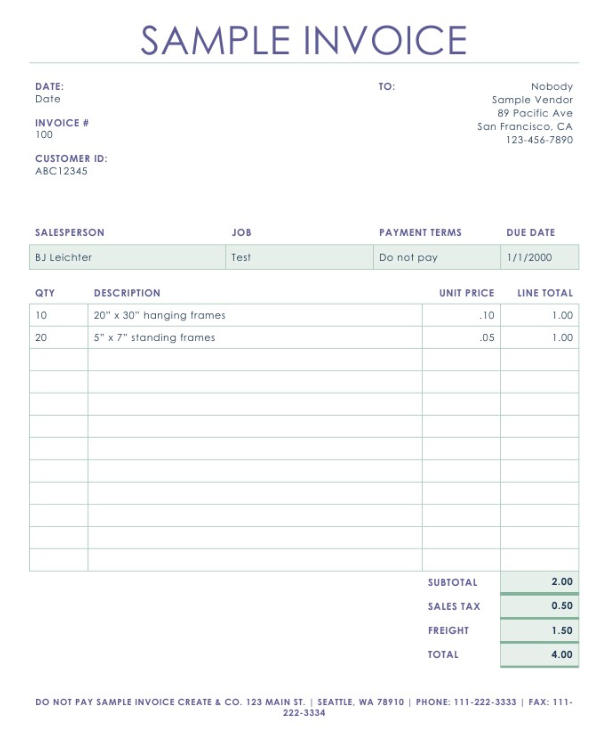
Below is an example of a PO invoice, including explanations of each line-item field and how Nimbello uses them. First we'll go over how the invoice should be entered in OCR (Optical Character Recognition) Module, and then we'll demonstrate how it should look in the Workflow module.
First, let's take a look at how the invoice should be entered in the OCR module:
[Click to open image larger a new tab]
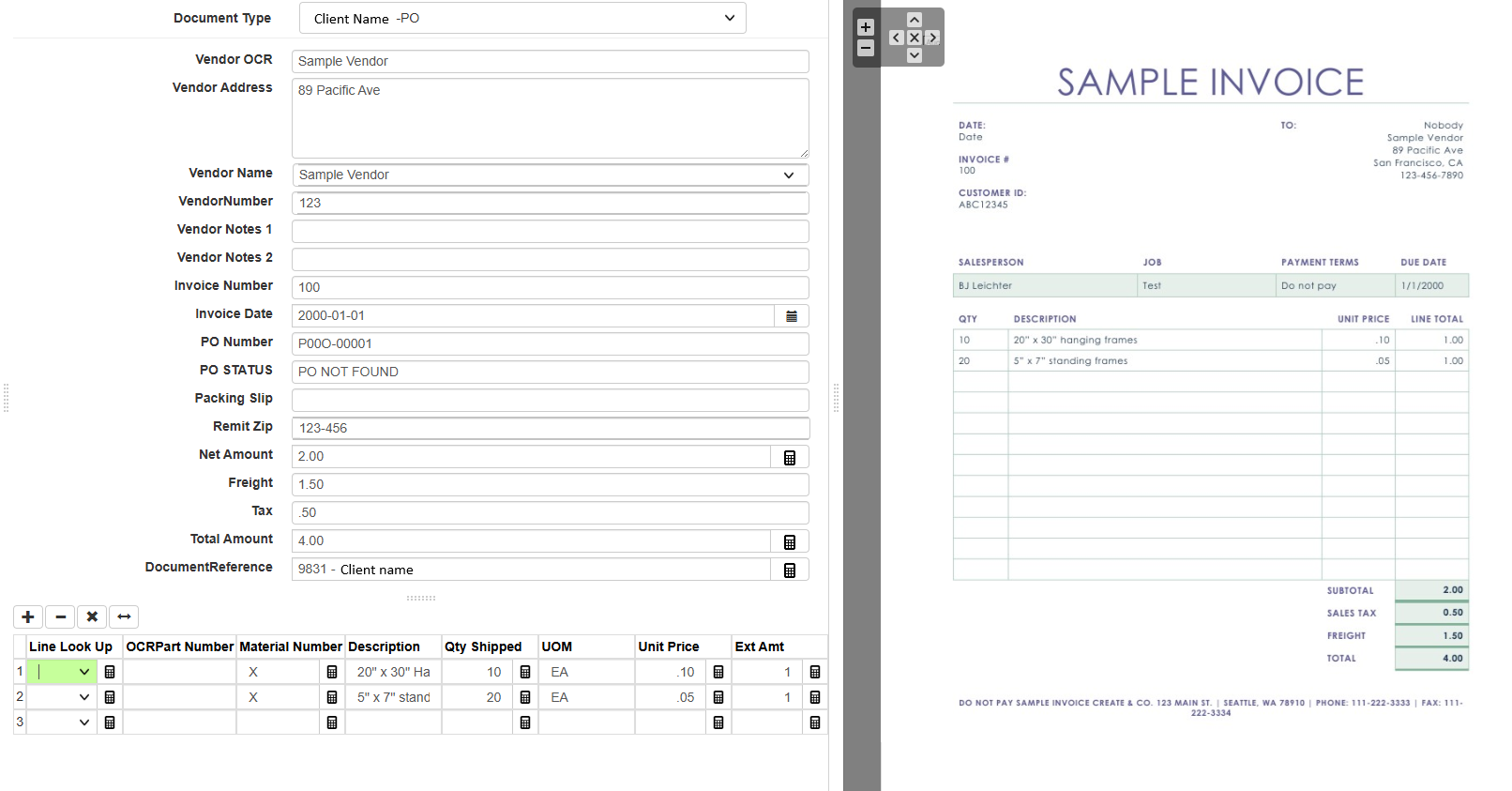
OCR: PO Line Items Explained
-
Material Number
- Must have some value entered for all line items that are not considered "additional charges". If no item number is present on the invoice, you should at lease enter an "X".
Example:
-
-
The invoice has two line items for frames, and also has additional charges for tax and freight
-
Each line item gets an "X"
-
-
-
UOM (Unit of Measure)
Example
This field is largely ignored by Nimbello, but should still reflect what appears on the invoice for consistency.-
- There is no unit of measure listed on the invoice, so "EA" is entered meaning "Each"
-
-
Unit Price
The price per unit as shown on the invoice. -
Extended Amount
The total line amount shown on the invoice (typically Quantity × Unit Price). - Additional charges:
-
- Tax and Freight have their own fields in the OCR. If there's another type of additional charge that isn't tax or freight, such as a "pallet charge", it can be entered in the line item section but make sure to leave the material number field blank for additional charges.
-
Example:
-
-
-
Freight is entered as 1.50, and tax as .50
-
-
Now let's take a look at the same invoice in the Workflow:
[Click to open images larger a new tab]
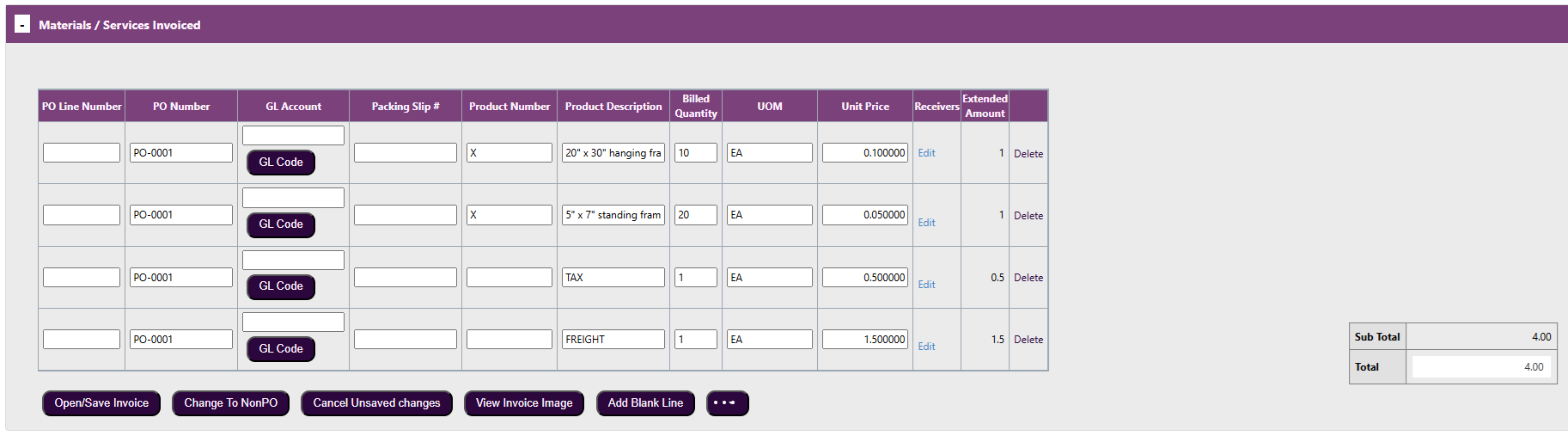
Workflow: PO Line Items Explained
-
PO Line Number
Should match the line number shown on the Purchase Order. This field often auto-populates. - PO Number
This should automatically fill in and should match the PO entered in the Heads section at the top of the page. - GL Account
For PO invoices, the GL coding should automatically populate for all additional charges such as tax and freight. -
Packing Slip #
This is an optional field, but can be helpful for vendors that include the packing slip numbers on their invoices.
-
Product Number
-
For Non-PO invoices, leave this field blank. If a value is entered, Nimbello will attempt to match the line item to a Purchase Order.
-
Leaving the field blank tells Nimbello that the line item is not associated with a PO. For PO invoices, this means the Product Number field should always be left blank for Additional Charges such as tax and freight.
-
Example:
-
The invoice has lines for two kinds of frames, as well as lines for Tax and Freight.
-
Frames should include a product number so Nimbello can match it to the PO. In this case we entered "X" so that Nimbello knows that the item needs to be matched to a PO Line number
-
Tax and Freight typically do not appear on the PO and should be treated as additional charges, not matched to any PO lines.
-
-
-
-
Product Description
Can be any descriptive text. This field is not used for automatic matching against the Purchase Order. -
Billed Quantity
Should reflect the quantity shown on the invoice. Quantity is used by Nimbello to help determine which PO line number should be assigned to each invoice line. -
UOM (Unit of Measure)
This field is largely ignored by Nimbello, but should still reflect what appears on the invoice for consistency. -
Unit Price
The price per unit as shown on the invoice. Unit Price is used by Nimbello to help determine which PO line number should be assigned to each invoice line. -
Extended Amount
The total line amount shown on the invoice (Quantity × Unit Price).